Best Android emulator for PC: Android is one of the most popular operating systems worldwide. Currently, its market share is 39%, whereas Windows has just 36%. People love Android because of its app availability and flexibility.
Even a basic knowledge of smartphones is enough for a person to handle an Android device. These days, Android is not limited only to mobile and tablet devices; you can also run this OS on your computers.
Yes, this is true. Many Android emulators are available that allow you to get a complete Android OS environment on your PCs.
A simple search will get you a list of hundreds of Android emulators for PC, but not all are safe and easy to use.
If you are trying to use a new app or want to play a game that is incompatible with your Android device, you can use these emulator players.
Millions of people are already using these tools to run Android apps and games on their PCs, and you can be the next.
You don’t have to search for suitable Android emulators, as we already did it for you.
We have compiled a list of some of the best Android emulators for PCs that you can download and use to get the best Android experience on your PCs.
Best Android Emulator For PC Windows & MAC
In this post, we will discuss some of the best Android emulators for PCs available today.
Remember that these are not Android simulator apps that show you how Android looks but emulator apps that allow you to get Android for PC.
You can run almost all Android apps and games on your PC by using them. Although many Android mobile emulators are free to download, some might come with in-app purchases that require real money. You can try them first for free, and if you like them, you can pay to unlock the premium features.
What is an Android Emulator PC?
If you are new to Android emulators, you should understand what they are. If you are looking for ways to run Android on a PC, you might need software called an emulator.
It applies to Android and vice versa. If you want to run Windows on Android, you must download a Windows emulator for Android. An emulator app lets you run apps and tools for another operating system.
So, you can run Android apps on Windows using Android emulators on your PC. They will give you a complete Android experience on Windows 10.
Top Best Android Emulator For PC | Best Windows Android Emulator | Free Android Emulator MAC
Android Phone Emulator For PC Lists Are Given Bellow.
1. Bluestacks
BlueStacks is currently one of the most popular and widely used Android emulators worldwide. This emulator was launched a few years back and gained popularity among PC users because of its easy-to-use interface.
It doesn’t matter if you want to play Android games on a PC or want to try out some apps; you can always use BlueStacks to do that easily.
This Android emulator is free but comes with some ads and pre-installed apps. Though you can uninstall them with a low-end PC, this emulator might become laggy.
BlueStacks is backed by some big tech giants, so you can trust this emulator and use it without any worries.
2. Nox App Player
Nox App Player is another good emulator for Android. It is pretty fast, and one good thing about this emulator player is that it updates frequently.
So, if you are looking for Android emulators with the latest version of Android OS, you should consider using Nox App Player instead of others.
Also, Nox Player is available for Windows and MAC PC devices. After signing in with a Google account, this player has a pre-installed Google Play Store app for installing new apps.
If you want, then you can also upload your own APK files in this emulator player to install them in this player.
3. Remix OS Player
If you are looking for Android emulators for low-end PCs, then you should try Remix OS. This is not an Android emulator but a complete Android OS that allows you to do almost anything.
Using Remix OS as an Android emulator, you can do everything, from playing games to installing apps and customizing.
You must use an external storage device like a USB Flash Drive to install and use Remix OS. Support for this OS has stopped now, so you might not get any updates.
Also, if you encounter any issues, you can solve them by reading the guides and tutorials already available on the Internet.
4. MEmu
MEmu might not be as popular as other Android emulators on this list, but it is worth having an emulator for Android.
MEmu is one of the lightest Android emulators. It allows you to play all types of Android games and run all Android apps without worrying about compatibility and configuration.
This emulator comes with Google Play Store and its own app store, allowing you to download and install apps without credentials.
Many apps are not available on the Google Play Store, so you can try their own app store to download those apps. You can visit its official website to find more information about it.
5. YouWave
YouWave was a good PC emulator for Windows before, but nowadays, other emulators mentioned above have taken over. Still, many people around the world prefer YouWave over other emulators.
This emulator can run even on low-configuration PCs, and you can also install it on external USB drives.
YouWave has two versions: one is free and the other is paid and costs around $29.99. The free version has all the basic features, while the premium version supports the latest Android OS and has many more features.
If you want, you can try a 10-day free trial of the premium version of this emulator and later reset the trial period of the software to use it even more.
6. Leapdroid
We will not say that LeapDroid is one of the best Android emulators for Windows 10 because this emulator comes with only basic functionality.
This emulator can do all basic work, such as running apps and playing games, but it does not support advanced features like macros, scripting, and multiple instances of apps.
This app is counted among the top Android emulators for PCs because of its speed. Since it has limited functions, you can expect it to be faster than other similar emulator players.
No official website is available for this emulator, and you must download it from software downloading sites like UpToDown, etc., to get a working version.
7. AMIDuOS Pro
Few people have heard about the AMIDuOS Android emulator because only a few use this tool.
You can download this Android emulator for Windows 10 and use its 3D acceleration feature to play high-end graphics games easily, even on low-end Windows devices.
If you don’t know how to play Android games on a PC using AMIDuOS, you can visit the menu section to find guides.
With the AMIDuOS emulator for Windows, you will also enjoy advanced features like file sharing, storage access, ethernet, WiFi, GPS, software keyboard, and more.
8. Andy Emulator
Andy is another good Android emulator for PC that has been around for quite a long time. Since other emulators started becoming more popular, the developers of Andy have stopped pushing updates for it.
This Android emulator allows you to play Android games and use Android apps, but you may encounter many issues.
This is not the best emulator for PC, but you can use this app to complete the work. Andy OS lets you connect your emulator with other Windows and MAC devices to share files and notifications.
You can install file-sharing apps to sync your data across devices and apps easily in just a few clicks.
9. Droid4x
Droid4X can be a good choice for users looking for Android emulators with an old version of Android OS. It has not had any recent updates, so it is still running on Android 4.4—Android 6.0.
You can download a free Droid4X Android emulator for PC from third-party websites like UpToDown, as the official website of Droid4X has been taken down.
If you are an app developer, you can use this Android emulator to test your apps, but they must support old Android OS.
Moreover, Droid4X is a highly customizable emulator, so you can also sideload APK files and other files in this emulator to use them.
The size of this emulator is very small, so you don’t have to worry about storage, either.
10. Genymotion
Genymotion is a premium Android emulator backed by big companies such as Samsung, Microsoft, Facebook, etc.
Remember that Genymotion is not just an emulator for playing mobile games on PC and running Android apps. This emulator will also give you an advanced Android interface that can help you test your apps.
You can download a Genymotion Android emulator from its official site, but it is a paid emulator. You can try this emulator on a VirtualBox machine, which will help you understand its basics.
Genymotion is available for Windows, MAC, and Linux devices and is useful for Android app developers.
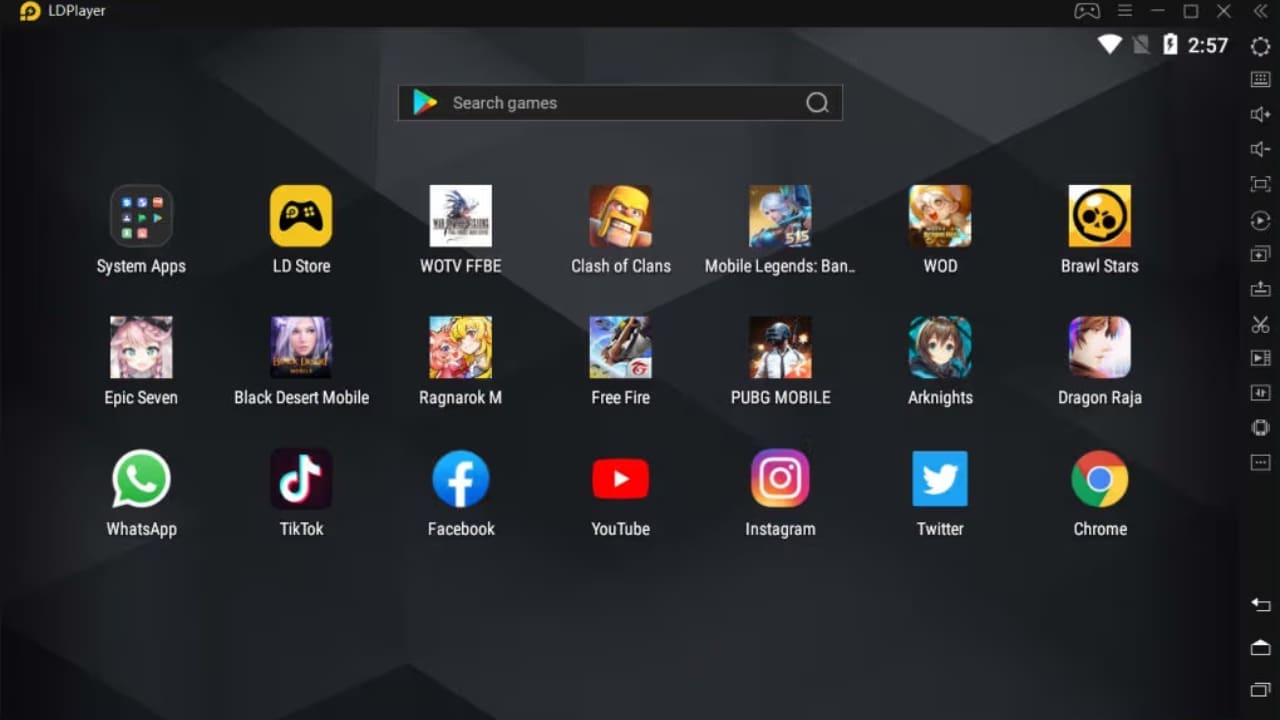
11. LDPlayer
If you are looking for Android emulators like BlueStacks, consider using LDPlayer. This emulator has all of the features you can find in BlueStacks and other popular Android emulators.
LDPlayer also allows you to combine your PC’s keyboard and mouse for easy game control.
You can customize the controls and configure them manually if you want. This emulator also allows you to run multiple instances of the same app or game. The latest version of LDPlayer supports Macros and Scripts.
This allows you to record a task and play it automatically so the LDPlayer will act.
12. GameLoop
GameLoop was previously available as Tencent Gaming Buddy, but the developers have launched a new and improved version of this emulator.
Remember that you can download the GameLoop Android emulator for free, but this emulator is not for running apps. It can only be used for playing games that are available in its database.
Popular games like PUBG, Free Fire, Call of Duty, Arena of Valor, and hundreds of others are already available on it. Right after the installation, you can begin downloading the games you want to play on it.
If you are looking for Android emulators to play games, a GameLoop player is the best choice.
13. Ko Player
KoPlayer is an easy-to-use and highly configurable Android emulator that you can download now. However, since no official website is available for KoPlayer, you will always have to download it from third-party websites.
This player is not for you if you want to use an Android emulator online.
After downloading this player, you won’t need to do anything, as it will apply all the best settings according to your system configuration.
However, you can configure its settings to make it run according to your needs. Sideloading APK files can also be done in the KoPlayer with just a few clicks.
14. PrimeOS
PrimeOS is another Android operating system player with a complete Android interface on a Windows PC.
The best thing about this OS is that it is very lightweight and has no pre-installed apps and software. So, if you are looking for an Android emulator for Windows 7, try it.
You can use this OS just like a new Android device, allowing you to disable and enable various settings to increase performance. You need to extract and install the contents of this OS on an external USB flash drive.
This makes it easy to use, and even a person with zero installation knowledge can use it without issues.
15. ARChon Emulator
ARChon is not an Android emulator but a runtime environment for Android. This Chrome-based player allows you to run almost all Android apps and games without any installation.
The best advantage of using this player is that you won’t get any ads, and you can play almost every Android game on it.
Well, if you are looking for an Android emulator for iOS, then this is not for you. After downloading an APK file from APK downloader sites, you can load it in this player for installation.
One advantage of this player is that it can be used on almost all PC systems, including Windows, Linux, MAC, and Chrome OS.
Best Android Emulator for PC: Final Words
So this is all about the Android app emulator for Windows, and we hope you know the best Android emulator for Windows 10. Many more Android APK emulators for PCs are available out there, but they are not as good as the emulators we mentioned above.
You can try them, too, but we recommend you try the ones we have posted in this post.
We will update this post with more Windows 10 Android emulators, so keep visiting CV to learn about them.
If you have used an Android virtual machine before or know about some good Android emulators for Linux, Windows, or MAC, please let us know.
If you are having trouble downloading or using Android emulators, please contact us via the comments below.